Why use two-factor authentication (2FA) or Multifactor (MFA) with your VPN connection?

What is a VPN?

Virtual private networks (VPNs) have been a popular way for companies to provide their employees remote access to their private servers and network resources. VPNs create secure connections between remote machines and your servers allowing your users to stay productive when out of the office. VPNs reduce the risk that hackers can find and enter your servers while your employees securely work from home or anywhere for that matter.

While VPNs are great, they are far from a perfect solution and are subject to security threats, such as phishing attacks. For example, an attacker will often send a legitimate looking email to one of your employees and invite them to log into their account via a link in the email to update their information, pay a bill, or other…. The hacker only has to wait for the unsuspecting employee to enter their username and password. Once in possession of valid credentials, the attacker will be able to connect to your VPN as a legitimate user, gain access to your network, steal information or cause other types of damage such as deploying ransomware.

How 2FA two-factor authentication secures your VPN network

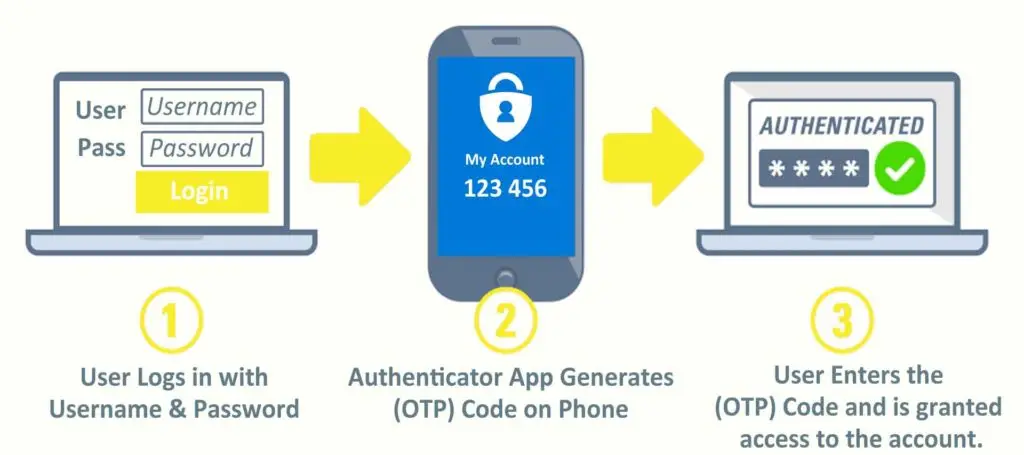
Two-factor authentication (2FA) reduces the risk that hackers can access your network using these stolen or compromised credentials. 2FA requires users to validate their identity by presenting a second security factor in addition to their password. When connecting to a corporate network, users must first enter their computer or VPN credentials, followed by a time-based one-time password (TOTP). This TOTP (usually a 6 digit numeric code) is displayed on users mobile phone in an application called an authenticator. Google Authenticator and Microsoft Authenticator are 2 popular and free apps compatible with both iPhone and Android devices.

2FA makes it extremely difficult to impersonate a user without having access to this second factor. This means that even if hackers were to steal all of your employees’ usernames and passwords, they still wouldn’t be able to access your VPN because they don’t have the 2FA code generated in the authenticator app.

How can I enable 2FA for my company’s VPN?

Every firewall and network is a little different and thus the configuration can vary dramatically. If you are interested in securing your network with 2FA please reach out to TMD Technology Services to assist you in determining the best path forward.

Aside from your VPN we highly recommend using 2FA on all your important accounts including email, banking, website and social media.

Sage 300 1099 NEC form new for year 2020 for Accounts Payable Nonemployee Compensation

Sage 1099 NEC Summary

The IRS has created the Form 1099-NEC for filing Non-employee compensation payments for 2020 which is was reported on the Form 1099-MISC.

Check on the IRS website for more information on Form 1099-NEC.

Why did the IRS reintroduce 1099-NEC?

Before its reintroduction, the last time form 1099-NEC was used was back in 1982. Since then, prior to tax year 2020, businesses typically filed Form 1099-MISC to report payments totaling $600 or more to a nonemployee for certain payments from the trade or business. These payments generally represent nonemployee compensation and, up until now, would typically appear in box 7 of 1099-MISC.

In order to help clarify the separate filing deadlines when reporting different types of payments on Form 1099-MISC, the IRS decided to reintroduce Form 1099-NEC which has a single filing deadline for all payments that use the form.

If you have Sage 17.1.x, Sage 18.1.x you will need to upgrade to sage 20.3 in order to use the 1099 NEC.

Resolution

The Form 1099-NEC updates are included in the following Product Updates: 2021.1, 2020.4 & 2019.7.

If you need to upgrade your sage installation we can help.  Call Today (561) 404-9251

Stay safe while video conferencing

If you are one of the millions of people that has been video conferencing during the COVID19 social distancing efforts it’s important for you to use some basic safety rules as you continue. I know it’s nice to see your team and/or family as if everyone was in the same room but we want to make sure it’s friendly faces and not strangers in our meetings.  Let’s review some basic video conferencing safety tips:

Use passwords and/or unique ID numbers for each meeting. If the conferencing service gives you these features, enable them for each meeting you host. If you’re not the host, ask whoever it is to do it. Other tools may be available to limit access to your video conference, like the ability to approve each participant before joining. Consider enabling those, too.

Keep your video conferencing software up to date. Many video conferencing companies are updating their software as they learn about vulnerabilities, so it’s important to have those patches and fixes. But, you should only accept updates directly from the service’s website. This is true, too, if you need to download a video conferencing app. You should only download it directly from the service’s website or a platform’s app store. Other basic security precautions should also be considered while working from home. Ensure your systems are up-to-date and protected at minimum with a reputable Antivirus.

Don’t open unexpected video conference invitations. Hackers are sending emails mimicking video conferencing invitations. Those emails may have links that download malware on your computer or device. If you’re not expecting a video conference invitation, check first with the host separately. If you’re the host, tell the participants in advance that you’ll be sending the link. Keep your eyes open and learn how to spot a phishy email.

Protect your privacy. Your camera and microphone may be on by default when you join a video conference, so check the settings in advance to learn how to mute yourself or turn off your camera if you need to. Also, keep in mind that your video conference may be recorded, so it’s best to avoid sharing private information via video conference. It’s also a good idea to review the service’s privacy policies to understand how your information will be handled.

Are you using telehealth conferencing? If you’re conferencing remotely with a health care provider, ask about dedicated telehealth conferencing services that can include more safeguards to keep information private.  If you are a healthcare provider and have questions on setting up a secure compliant option, we can help.

Do you need help using video conferencing services as part of your business operations? Call us today. (561) 404-9251

Reduce the Coronavirus Impact On Your Team

In this time of uncertainty many businesses are still struggling to successfully adapt to working remotely.  The good news is there are tools available that many of you already have in place as part of your Office 365 subscriptions.  Microsoft Teams and Bookings are two often overlooked Microsoft applications included with Office 365.  These applications can help manage communications and operations while maintaining safe distances via Video Conferencing, Chat and scheduling.  OneDrive and SharePoint can be used for file sharing and collaboration.  These tools are not only great for the issues we’re dealing with today but are great productivity tools when we come out on the other side.

Microsoft Teams
Chat, Phone/Video Calls & Screensharing on your computer and mobile devices.  Microsoft Teams is the hub for team collaboration in Office 365 that integrates the people, content, and tools your team needs to be more engaged and effective. 

More Info: https://products.office.com/en-us/microsoft-teams/group-chat-software

Microsoft Bookings
Microsoft Bookings is an online and mobile app for small businesses who provide services to customers on an appointment basis. Examples of businesses include hair salons, dental offices, spas, law firms, financial services providers, realtors, consultants, and auto shops. 

More: https://www.microsoft.com/en-us/microsoft-365/business/scheduling-and-booking-app

Sharepoint/OneDrive
Share files, data, news, and resources. Customize your site to streamline your team’s work. Collaborate effortlessly and securely with team members inside and outside your organization, across PCs, Macs, and mobile devices.

More Info: https://products.office.com/en-us/sharepoint/collaboration

Remote PC Access & Support
If you have a monthly managed plan we can quickly facilitate remote access for your employees allowing access to their office desktops securely from home.  If you don’t have a monthly plan now is a great time to consider adding one.  It is the quickest way to secure your business and ensure smooth operations both in and out of the office. Additionally we are offering discounted options to add employees personal computers to the managed plans you currently have to ensure they have adequate support and security protections in place.

If you or anyone you know would like to discuss any of the options TMD Technology Services is here to help.  

3 Child Safety Apps to Download for Halloween

Halloween is on the way and kids everywhere are already bracing for the impending sugar rush and halloween parties.  This halloween take some early precautions and checkout these 3 Child Safety Apps that will help the kiddies stay safe.

  1. Location Apps | There are some great apps out there where you can track the movement and location of a wireless device. Most mobile carriers – definitely Verizon and AT&T – have their own family locator app, which is usually available with a monthly charge. Most of these apps will typically run incognito so that the person using the phone doesn’t know their location is being tracked. This is a perfect option if you want to give your kid a sense of independence while also keeping tabs on their safety. One highly-rated, free location app called Follow You, Follow Me allows users to track and view each other’s location, and is available for download from the Apple iTunes store. Similarly, GPS Phone Tracker can be used to find a user’s phone and track their whereabouts at any given time, and is available for download from the Google Play Store. If you really want to take the extra step here, consider installing a panic button app that can be used whenever you or your loved one is in trouble.
  2. Set or Automate Check-In Times | You can set an alarm using the pre-installed alarm app on your child’s mobile device to alert them when it’s time to check-in with you. If you’re worried that they’ll just hit the snooze button, you can use apps like SchedCall (Android) and CallBot (Apple) to automate calls to a designated phone number. Some of these apps allow you to schedule calls to multiple people at the same time, while others work their way down a hierarchy of people if the call is missed. The app can alert any parent or guardian first, and if they’re busy, you can arrange for another close friend or relative to be next in line.
  3. ICE and Education | Most of us neglect the ICE (In Case of Emergency) contact lists in our phones, or don’t even know how to add an ICE contact in the first place. In the event of a true emergency, having an ICE contact can help emergency personnel find the right person to immediately get in touch with. These numbers should be one of the FIRST places they check to notify you or another close relative. Most phones have this feature built in, but yes, there are apps for that. For easy access and visibility, most apps allow you to place a widget on the home screen of the device, or you can always ask Siri to help out.

Lastly, these tips and tools are no good if your child doesn’t know why they’re important and how to use them. Most kids seem to have smartphone skills ingrained in their DNA nowadays, so it shouldn’t be an issue to educate them. Furthermore, you can reinforce this education in your local community. If you’re a member of a neighborhood watch or a similar group, spread the knowledge and share these tools with them.